Why Do Notifications on a Smartwatch Count as an Extra Privacy Risk?
A smartwatch can show a message in a glance: a patient’s name, a clinic reminder, a colleague’s update or the first line of an email. That convenience is also the privacy risk. Information meant for a phone screen can appear on a smaller, more visible display—sometimes while you are speaking with a patient, working in a shared area or travelling home.
Smartwatch notifications are not automatically a data breach. The risk depends on what information is sent, which devices and services are involved, who can see the screen, and whether your organisation permits that use. For NHS and other healthcare staff, the safest starting point is not a watch setting. It is your employer’s policy.
Start with your employer’s BYOD and device policy
Before connecting a personal smartwatch to a work phone—or allowing work notifications to reach a personal phone or watch—check your employer’s bring-your-own-device (BYOD), mobile-device and information-security policies. Policies may restrict wearable devices, require registration or management, or prohibit organisational information from appearing on personal equipment.
Ask your IT or information-governance team what is allowed. In particular, check whether the rules cover:
- Personal smartwatches paired with work phones.
- Work accounts, calendars, messages and email on personal devices.
- Notification mirroring, previews and voice-assistant features.
- Device management, passcodes, updates, loss reporting and remote wiping.
- Use of wearables in clinical areas or around patients and visitors.
Do not assume that permission to use a work app on a phone automatically covers every device linked to that phone. A smartwatch is another endpoint: it may display, store or relay information under different conditions from the handset. Equally, a personal device does not become an approved work device just because it is paired with an NHS-managed phone.
The ICO’s UK GDPR guidance, including its advice on working securely and working from home securely, is useful background for understanding the need to protect personal data wherever work takes place. It does not replace local policy or authorise a particular device. Follow your organisation’s instructions and ask for a decision if the rules are unclear.
Use approved systems only for patient and organisational data
Patient and organisational information should stay within systems and services approved by your employer. That includes the route by which information reaches a wearable. Forwarding a work message to a personal account, copying details into a consumer app or using an unapproved voice assistant is not a safe workaround.
Even a notification that looks brief can reveal sensitive information. A message may include a name, appointment time, ward, clinical update or the start of a conversation. Combined with what is happening around you, that snippet may identify a patient or disclose something about their care.
Use approved clinical and organisational applications for work. If your employer has not approved notifications on a smartwatch, keep them off the watch. If an approved system supports notifications, use the controls and configuration specified by your organisation; do not create a separate route through personal apps to make the information easier to access.
What “approved” means in practice
An approved service is one your organisation has assessed and authorised for the relevant information and purpose. A familiar app, a strong password or a private account does not by itself obgynkey.com make a service approved. Nor does storing information in a folder make it secure. Security depends on the whole arrangement: access, configuration, data handling, device management and organisational oversight.
If you are unsure whether a calendar alert, message or work email is permitted on a wearable, check before enabling it. That small pause is preferable to finding out after information has appeared in the wrong place.
Why a smartwatch creates extra exposure
Phones are already potential privacy risks, but watches change how information is presented. Their screens are designed for quick checks, and notifications are often visible without opening an app. This is glanceable info exposure: information can be read in a moment by the wearer—and possibly by someone nearby.
A watch is often held at chest or wrist height, where colleagues, patients, visitors or people on public transport may have a clear view. A vibration, sound or bright screen can also draw attention, prompting the wearer to raise their wrist and reveal the display. The risk is not limited to deliberate snooping; accidental visibility is enough to matter.
Wearables can also create lock screen equivalents. Depending on the model and settings, a notification may appear on the watch even when the phone itself is locked. The watch may therefore expose a preview in a place where the phone’s lock-screen controls are not doing the job you expect. Some devices also keep recent notifications available to review.
Finally, a smartwatch is part of a connected setup. Phone and watch settings, companion apps, account syncing and notification rules can all affect what appears where. These linked device controls are easy to overlook: changing a setting on the phone may not change the watch in the same way, and a work profile or managed app may behave differently from personal apps.
Potential exposure Why it matters Practical check Message preview on the watch A name or clinical detail may be readable to people nearby. Check preview settings on the watch itself, not only on the phone. Vibration or sound during care It can distract the wearer or draw attention to a visible screen. Use the locally approved quiet or focus settings where appropriate. Mirrored work notifications Work data may reach a personal or unmanaged device. Confirm whether mirroring is allowed under employer policy. Shared or unattended device Another person may see stored alerts or use an unlocked watch. Use an appropriate passcode and follow loss-reporting procedures.Separate entertainment from clinical work
Keeping personal and clinical activity separate reduces mistakes. A watch used for music, fitness or personal messages may still be linked to a phone that holds work accounts. That does not mean you need to stop using the device for everyday purposes; it means you should avoid letting approved clinical information drift into entertainment or personal services.
Keep patient and organisational data out of personal messaging, consumer note-taking, voice-assistant and file-sharing services unless your employer has explicitly approved them for that use. Avoid using a personal calendar to record identifiable patient details. Where personal and work profiles are available, use them only as directed by your organisation, and do not assume separation is effective without checking how notifications behave across devices.
Practical steps include:
- Use work apps and accounts only on devices and services approved by your employer.
- Turn off work notification mirroring to a personal watch unless it is explicitly permitted.
- Do not dictate patient information to a consumer voice assistant.
- Keep personal fitness and entertainment services separate from clinical records and communications.
- Report a lost device or suspected disclosure through your organisation’s established process.
Make notification privacy a device-by-device check
Notification behaviour varies between watch models, operating-system versions and app settings. A general instruction such as “hide previews” may not work identically across the phone and watch. Test the actual setup before relying on it—especially the watch’s screen when the phone is locked.
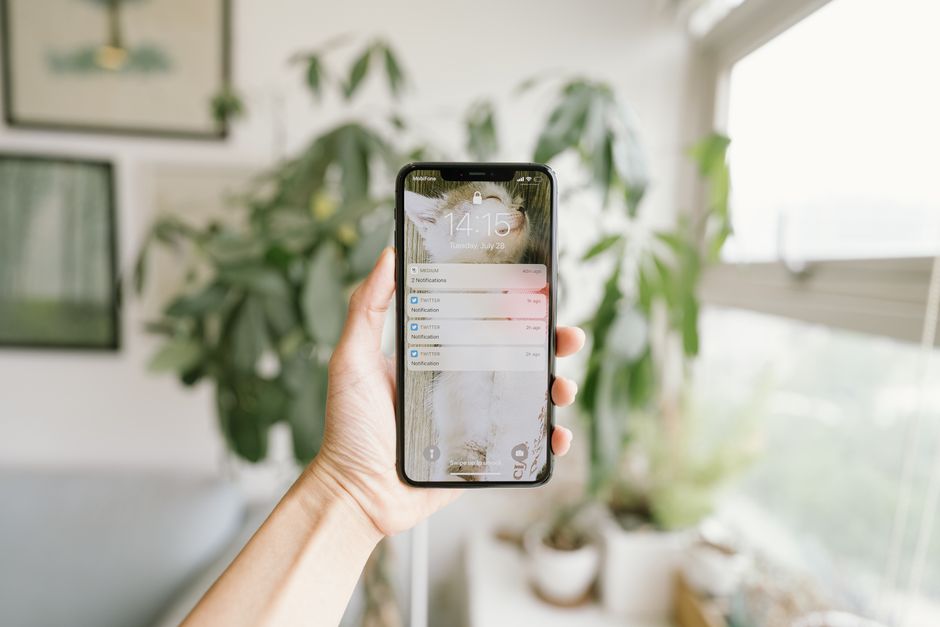
Use this sequence, provided the configuration is allowed by your employer:
- Check policy first. Confirm whether the watch may receive work notifications at all. If not, disable them rather than trying to make previews less visible.
- Review phone and watch settings separately. Look for notification mirroring, preview content, wrist-raise display, wake-on-alert and any setting that keeps recent alerts on screen.
- Check app-level controls. Some apps have their own preview or notification options, separate from the device’s general settings.
- Test the lock screen equivalents. Lock the phone, trigger a harmless test notification and check what appears on the watch. Then check what remains visible when the watch is raised or tapped.
- Repeat after changes. Updates, new apps or changes to paired devices can alter notification behaviour. Recheck after an update or when pairing a different phone or watch.
Use non-sensitive test content. Do not send patient information to yourself just to see how it displays. If the watch cannot reliably hide previews, or your employer’s policy does not permit the connection, switch off the relevant notifications or unpair the device in line with local guidance.
Don’t rely on a single privacy setting
A hidden preview may reduce what appears at a glance, but it does not necessarily prevent an alert from appearing, vibrating or becoming available after interaction. A passcode can help protect an unattended device, but it cannot stop someone beside you from reading a lit screen. Settings are useful controls, not a substitute for approved systems and sensible device use.

What to do if a notification exposes information
If a notification containing personal or organisational information is seen by someone who should not have access to it—or a device is lost—follow your employer’s incident-reporting process promptly. Do not try to resolve a potential data incident privately or delete evidence before seeking advice. Your organisation’s information-governance, IT or data-protection team can assess what happened and advise on next steps.
For routine questions, ask your manager, IT service desk or information-governance team before enabling a new device connection. It is reasonable to ask for clear instructions on whether a particular watch, app or work account is approved.
The practical takeaway
Smartwatch notifications count as an extra privacy risk because they create another screen, another set of notification controls and another opportunity for sensitive information to be seen. Small displays make messages easy to glance at, not necessarily safe to glance at.
Start with your employer’s BYOD and device policy. Keep patient and organisational data within approved systems. One client recently told me was shocked by the final bill.. Separate entertainment from clinical work. Then check the phone and watch together, including their lock screen equivalents, and test the real setup with harmless content. If the policy or settings are unclear, leave work notifications off until you receive guidance.